Solution 1: Transfer video from iphone to mac with iTunes
In fact, it is not difficult to
transfer videos. First of all, you need to download or update your
iTunes to latest version, and then follow these steps to transfer video from iPhone to Mac
1. open iTunes on your computer and connect your iPhone.
2. Select your iPhone in iTunes and select Video from the row of tabs that are presented.
3. Then either select to sync all videos or select the playlists you want on the iPhone. Then click on Apply and Sync.
If
you have the movies purchased from iTunes Store, you are able to move
these movies back to iTunes library. You only need to use the “Transfer
Purchases” function of iTunes. The tutorial is as follows:
1. Run
iTunes, and go to “Edit > Preference > Devices”, then check
“Prevent iPods, iPhones and iPads from syncing automatically”.
2. Plug iPhone into MacBook via the USB cable, and iTunes will launch. If not, you need to start it manually.
3.
Click “File > Device > Transfer Purchases” at the upper left
corner of iTunes. Then iTunes will transfer all the purchased items from
iPhone to iTunes library.
Solution 2: Transfer video from iphone to mac with iPhoto
When you connect your iPhone to iPhoto you will see it pop up in the
left hand column, after it shows up there, click on on it and it will
show you all media on your phone. It will ask you if you want to sync,
you say yes and then it will ask you if you want to delete originals
from iPhone
Solution 3: Transfer video from iphone to mac with the third-party software
If you want to
transfer videos from iPhone to MacBook without the sync of iTunes, you
can take advantage of the third-party iPhone transfer software--MobiKin Assistant for iOS. Follow some steps to transfer movies from iphone to mac.
Step 1: Install and run the software on your mac
Step 2: Make it detect and scan your iOS device
Step 3: Preview and mark your target files
Step 4: Click "Export" button to transfer video from iphone to mac
2015年7月12日星期日

2015年7月9日星期四
How to transfer text messages from iphone to computer
Text messages are often an important thing to backup. If you're using
iPhone, you may know that iTunes could help you back up your iPhone
data, including messages. However, sometimes you cannot read the backup
files normally through iTunes. Well, there is another easy way to help
you directly transfer text messages from iPhone to Computer - using MobiKin Assistant for iOS software.
Follow some steps to transfer text messages from iphone to computer
Step 1: Firstly, connect your iPhone 6 Plus, iPhone 6, iPhone 5S or 5, etc. is connected to your computer, then run the program.
Step 2: The software will display all iPhone files in categories on the left panel. Click the "Messages" to preview all the iPhone SMS in your computer. And then you can choose the needs you want to backup.
Step 3: Click "Export" to backup text messages from iphone to computer
Follow some steps to transfer text messages from iphone to computer
Step 1: Firstly, connect your iPhone 6 Plus, iPhone 6, iPhone 5S or 5, etc. is connected to your computer, then run the program.
Step 2: The software will display all iPhone files in categories on the left panel. Click the "Messages" to preview all the iPhone SMS in your computer. And then you can choose the needs you want to backup.
Step 3: Click "Export" to backup text messages from iphone to computer
If you have already backed up your
iPhone with iTunes, you can get the deleted text messages and contacts
back by the following steps using iTunes:
Click the File menu and select Devices > Restore from Back up. Or Open the iOS device's Summary tab. There are two ways to access this:
Step 1: Click the device button in the upper right corner. (If viewing the iTunes Store, click the Library button in the upper right corner. The device button will then be visible.)
Step 2: From any view in iTunes, click the View menu and select Show Sidebar. Select your iOS device in iTunes under Devices.
Step 3: Click the Restore Backup button
Download: http://www.mobikin.com/assistant-for-ios/
Click the File menu and select Devices > Restore from Back up. Or Open the iOS device's Summary tab. There are two ways to access this:
Step 1: Click the device button in the upper right corner. (If viewing the iTunes Store, click the Library button in the upper right corner. The device button will then be visible.)
Step 2: From any view in iTunes, click the View menu and select Show Sidebar. Select your iOS device in iTunes under Devices.
Step 3: Click the Restore Backup button
Download: http://www.mobikin.com/assistant-for-ios/
2015年6月24日星期三
Transfer Photos from iPhone to Mac with MobiKin Assistant for iOS
Guide: Transfer Photos from iPhone to Mac
Do you know how to transfer photos from iphone to Mac easily? As for me, the simplest way is use the third party software. MobiKin Assistant for iOS (Mac Version) is a good choice for you. I use it and feel well. It really work well. Follow some steps to backup pictures from iphone to mac.

Step 2: Preview and choose photos of you need
Step 3: Click "Export" to transfer photos from iphone to computer

Step 2: Tap "Select" button on the top right corner and mark the pictures you wish to transfer. After that, you can click Share and choose Mail function to send the images to your desktop computer easily.
Step 3: However, using email to send photos have number limited, you only allowed to send up to 5 pictures in one email. So if you have a large amount of photos should be transferred, this method could be time-consuming. And it is required the network situation is normal. Otherwise, you can't use the Mail service.
Download: MobiKin Assistant for iOS (Mac Version)
Do you know how to transfer photos from iphone to Mac easily? As for me, the simplest way is use the third party software. MobiKin Assistant for iOS (Mac Version) is a good choice for you. I use it and feel well. It really work well. Follow some steps to backup pictures from iphone to mac.

Solution 1: Transfer Photos from iPhone to Mac with MobiKin Assistant for iOS
Step 1: Connect iPhone with computer via usb data cable and run the programStep 2: Preview and choose photos of you need
Step 3: Click "Export" to transfer photos from iphone to computer
Solution 2: Sync iPhone Photos or Pictures to Mac with iPhoto
Step 1: Directly connect your iPhone 6/6 Plus/5S/5 to Mac, and then iPhoto will automatically launch and open to the Import window. All photos taken with iPhone will be listed under "Camera Roll".
Step 2: Click "Import All..." button to load all iPhone photos to iPhoto with one click. If you only need to import few files, you can click "Import Selected" button as you like.

Solution 3: Transfer Photos from iPhone to Mac via Email
Step 1: If you only have few images need to be exported to Mac computer for sharing or backup, you can use the Email service on your iPhone. You only need to open the photo app on the device, and find the photos you want to send.Step 2: Tap "Select" button on the top right corner and mark the pictures you wish to transfer. After that, you can click Share and choose Mail function to send the images to your desktop computer easily.
Step 3: However, using email to send photos have number limited, you only allowed to send up to 5 pictures in one email. So if you have a large amount of photos should be transferred, this method could be time-consuming. And it is required the network situation is normal. Otherwise, you can't use the Mail service.
Download: MobiKin Assistant for iOS (Mac Version)
2015年6月11日星期四
How to Transfer Podcasts from iPhone to iTunes
It is not difficult to transfer podcasts from iPhone to iTunes, you can use the third party software to sync podcasts from iPhone to iTunes easily. I recommend MobiKin Assistant for iOS software, which can backup contacts, text messages, media files (photos, music, video), ringtones, podcasts, notes, voice memos, tv show, audiobooks, etc from iphone, ipad, ipod to computer or mac easily. Let me have a step to sync podcasts from iPhone to iTunes library on Windows or Mac

Solution 1: Transfer Podcasts from iPhone to iTunes library on Windows Computer
Step 1: Connect iPhone device to computer and run MobiKin Assistant for iOS (Windows Version) the program
Step 2: Click "Podcasts" to preview the podcasts and mark the files you need
Step 3: Click "Export" button to copy podcasts from iPhone to iTunes library on Windows computer

Solution 2: Transfer iPhone Podcasts from to iTunes on Mac
Step 1: First, you need to download iTunes on your Mac. Then link iPhone to pc and run MobiKin Assistant for iOS (Mac Version) the program
Step 2: Preview podcasts and choose the podcasts you need
Step 3: Begin to export iPhone podcasts iTunes library on Mac
Download: MobiKin Assistant for iOS

Solution 1: Transfer Podcasts from iPhone to iTunes library on Windows Computer
Step 1: Connect iPhone device to computer and run MobiKin Assistant for iOS (Windows Version) the program
Step 2: Click "Podcasts" to preview the podcasts and mark the files you need
Step 3: Click "Export" button to copy podcasts from iPhone to iTunes library on Windows computer

Solution 2: Transfer iPhone Podcasts from to iTunes on Mac
Step 1: First, you need to download iTunes on your Mac. Then link iPhone to pc and run MobiKin Assistant for iOS (Mac Version) the program
Step 2: Preview podcasts and choose the podcasts you need
Step 3: Begin to export iPhone podcasts iTunes library on Mac
Download: MobiKin Assistant for iOS
2015年6月3日星期三
How to Transfer Contacts and Photos from iPhone to Computer
Guide: Transfer Contacts and Photos from iPhone to Computer
I use MobiKin Assistant for iOS transfer contacts and photos from iphone to computer. It is the professional and excellent software for iOS data backup, and it can transfer up to 14 types of files from iPhone, iPad and iPod to computer, including contacts, text messages, video, photos, music, ebook, notes, safari bookmarks, voice memo, podcast, ringtone, playlist, etc.
I use MobiKin Assistant for iOS transfer contacts and photos from iphone to computer. It is the professional and excellent software for iOS data backup, and it can transfer up to 14 types of files from iPhone, iPad and iPod to computer, including contacts, text messages, video, photos, music, ebook, notes, safari bookmarks, voice memo, podcast, ringtone, playlist, etc.
2015年5月19日星期二
How to transfer photos from iphone to computer
How to transfer photos from iphone to computer? As we all known that we can't transfer photos from iphone to computer directly. How to get photos from iphone to computer? In fact, you can use the third party software to copy photos from iphone to pc. I have a recommendation for you. Try MobiKin Assistant for iOS software, it can help you transfer photos from iphone to computer easily.

As for me, MobiKin Assistant for iOS is a professional ios data transfer tool, you can use it to transfer 14 types of files from iPhone, iPad and iPod to computer with three steps, which including photo, video, music, ebook, contacts, text messages, notes, safari bookmarks, voice memo, podcast, ringtone, playlist, etc.
Follow a step to transfer pictures from iphone to computer

Step 1: Install and run the program on your computer, connect iphone to computer through usb data cable.
Step 2: Click "Photos" to preview all photos, you can also quickly find the photos of you need by search function on the top right corner.
Step 3: Click "Export" button to export photos from iphone to computer

As for me, MobiKin Assistant for iOS is a professional ios data transfer tool, you can use it to transfer 14 types of files from iPhone, iPad and iPod to computer with three steps, which including photo, video, music, ebook, contacts, text messages, notes, safari bookmarks, voice memo, podcast, ringtone, playlist, etc.
Follow a step to transfer pictures from iphone to computer

Step 1: Install and run the program on your computer, connect iphone to computer through usb data cable.
Step 2: Click "Photos" to preview all photos, you can also quickly find the photos of you need by search function on the top right corner.
Step 3: Click "Export" button to export photos from iphone to computer
2015年5月8日星期五
How to transfer files from iphone to pc
Nowadays, the more and more files were stored on iphone. Do you know how to transfer files from iphone to pc? There is no doubt that the simplest way is use the third party software. Here you can use MobiKin Assistant for iOS software. As one of the most iOS data backup software, you can transfer up to 14 types of files from iPhone, iPad and iPod to computer
with a few clicks, including contacts, text messages, video, photos, song, ebook, notes, safari bookmarks, voice memo, podcast, ringtone, playlist, etc.
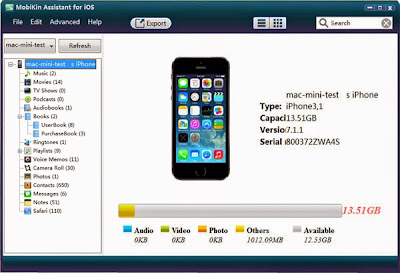
Guide: How to transfer files from iphone to pc

Guide: How to transfer files from iphone to pc
订阅:
博文 (Atom)